
Creating orders
Create a new order as soon as you want to realize an order with your clients. You have the possibility to send orders for confirmation to clients and thus keep a good overview of your orders and their status. An order is the basis for invoicing. Please fill out an order for each project or service for which Smart should issue an invoice.
To do this, please click on the +New order button at the top right of the dashboard. You can access the order view in various ways:
Dashboard


When creating an order, please pay close attention to the input of data, such as the order and service description, as they will be taken over exactly for invoicing to the clients. In the next step, in the status of Smart Confirmation, we will review the order and make minor adjustments if necessary. We will not make any changes that affect the content of your orders and agreements with clients (scope of services or amount of fees).
There are two different types of orders:
- Individual order: This is either invoiced in a single invoice or billed through partial payments.
- Order as a framework agreement: This describes a collaboration over a longer period, for which recurring invoices are issued, e.g. on a monthly basis.
The same form is used for both types of orders. The differences are specified in the payment terms and the service period.
You can find the details described step by step below.
For every order processed through the cooperative, a Smart fee of 9% of the net invoice amount is deducted. The revenue from the Smart fee is used to fund the cooperative’s services, their further development, and the payment guarantee. If your project is not processed through Smart, you will not incur any costs.
Below we will guide you through all the steps of order creation
Client
Type the first 3 letters of the client to select from the client database or create a new client. If you haven't done this step yet, please go to the chapter 'Adding a new client' in this tutorial.
Contact person
The contact person is linked to the individual order and must therefore be entered for each new order, even if the client has already been created in the database. You can send different orders with the same client to different contact persons.
The contact person is only visible to you and does not appear publicly in the client profile. The contact person receives all e-mails and invoices related to the order (order confirmation, invoices, cancellation). If several persons should receive the invoice, you can add additional e-mail addresses here. Please note that the order form will only be sent to the contact person.
In the client profile you can specify another e-mail address to which all invoices and cancellation invoices will also be sent (see chapter 'Adding a new client - e-mail for invoice'). The e-mail addresses of the contact person and the invoice address can also be the same. In such case only one e-mail will be sent. If no additional e-mail address for invoices is specified under client details, the contact person given in the order will receive the invoice.
Sector (Activities)
In the next step, please select the sector according to the service you provide.
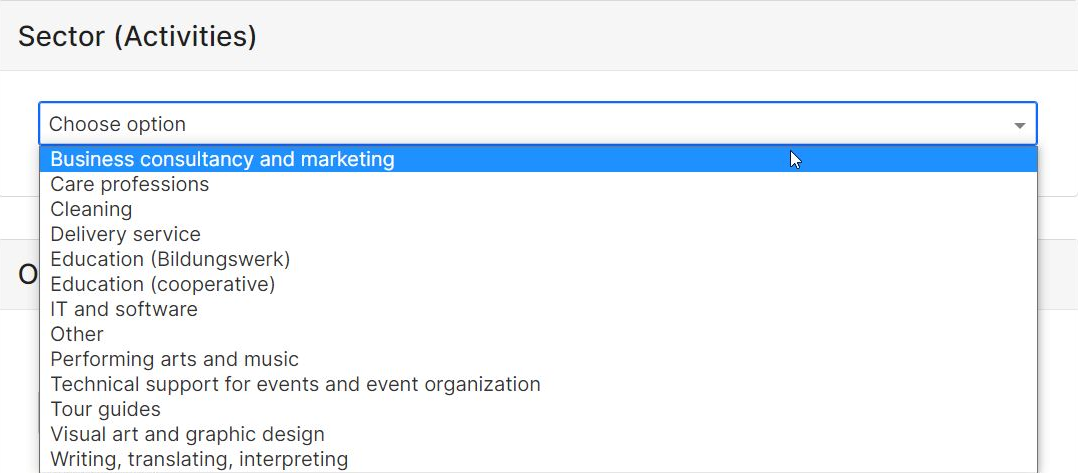
Order details - Description, Place and time of service, Attachments
Based on the parameters 'Sector /Activity' and 'Place of service' as well as the client data, the correct VAT rate for your order will be calculated automatically.
Please note that your name will not automatically appear on the invoice. If it is important for you, please write your name either under Project name or in the Description of order.
This is the field where the description of your service is entered. Example: Teaching activity for Event X. In this field please enter text only, no tables etc., as these cannot be displayed well on the invoice. For detailed service overview please use the function 'Add new item' or 'Add file'.
Adding Documents

Additional documents such as timesheets or other details can be sent to the client via the portal in the course of the client confirmation. If you skip the client confirmation, your client won't receive these files!
Please note: Documents sent in the course of client confirmation are not sent again with the invoice. They should therefore be downloaded if necessary. If documents need to be sent with the invoice, please upload them under “Invoice Attachments.”
The client will receive an automatic e-mail with the invoice as a PDF-file (the exact e-mail templates sent from the portal can be found in the chapter Communication with clients). You will receive the invoice in cc and can then forward the additional documents to your client yourself, if necessary.
Add new item
Here you can indicate specific services that belong to one order and choose between different units (days / lump sums / hours / months / weeks and other units), which will be added together and listed on the order and later the invoice, as seen below.

Tip: If you have negotiated the total gross amount and want to calculate your net to enter in the portal, you can use the input tax calculator online.

Currency
Currently it is possible to create invoices in the following currencies:
EUR, USD, CAD, PLN, GBP, CZK, CHF, AUD, DKK, JPY, SEK, BRL.
If your client would like to receive an invoice in another currency, please contact our member support team.
Service period
Please indicate when exactly the service will be provided. The service period also defines when the order can be completed. Finished orders, for which the service period lies is in the past and for which invoicing has taken place can be completed by the member manually (go to Check order status for further instructions).
If recurring invoices are to be created based on this single order, please enter the entire service period, i.e. the period for which the recurring invoices should be issued, e.g. from 01/09/2026 to 31/08/2027. If you then select monthly invoicing under “Payments”, an invoice will be created every month for the entire service period based on this order.
Client confirmation
Before the invoice is issued to your client, your order can first be sent to them for confirmation. This is a recommended option, especially for business clients within the EU, as we can offer payment guarantee for these orders, as long as they are confirmed.
If you choose the option Send order to client confirmation, an e-mail with the confirmation link will be sent to your client. At this point they can still request changes, confirm or reject the order. This document is not an invoice!
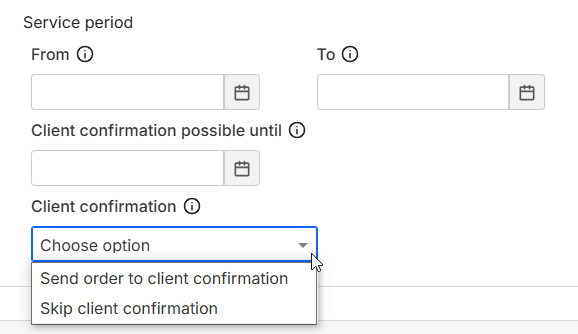
Skip client confirmation and create an invoice
Use this option if you want to skip the confirmation by the client and go directly to invoicing. Please select an appropriate reason for skipping.
Please note: If there is no other confirmation of the order from your client, e.g. a separate agreement that you can upload in the portal, the order will be processed without payment guarantee.

Orders requiring client confirmation below €5,000 are confirmed by the client with a single click. Orders requiring client confirmation above €5,000 must additionally be signed by the client. In this case, the client will receive an email asking them to first download the order and then upload the signed version. You can find the email template under Communication with clients.
Offer valid until
Please set a deadline until when the clients can confirm your order. After the deadline, the order will change its status to "Rejected". You will be notified per e-mail 3 days before the end of the deadline, so you can get in touch with your clients.
Payments
Now you can indicate the mode of payment, the billing date and when the payment is due. Please note that this information is especially important, as it influences the timing of invoicing and reminders.
Mode of payment
After completion
Please note that you cannot receive payment guarantee with this payment mode.
Installments
The payment of your order can be divided into up to three invoices. You can specify when particular installments should be invoiced.
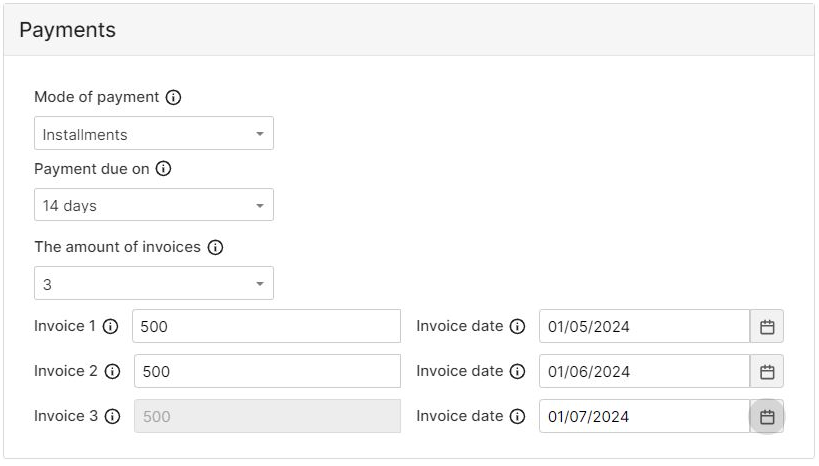
Recurrent payments
Recurring orders or frame contracts refer to the same service that is invoiced on a regular basis. If the invoice for the same amount should always be issued at a certain time, you can specify this as follows:

Pre-payment
For a pre-payment, the service period must be in the future.
User-defined
Here, you can define yourself when the invoice should be issued, independently of the other information entered in the order form.
Comment
You can leave a comment for the Smart Advisors' Team here. It will be only visible for us and not for the client.
Signed Orders
At the very bottom, you can upload orders, contracts, or other documents that have already been signed by the client and confirm the collaboration. Smart can access and review these documents.Save as draft or save and submit
Now the order can be sent directly to the Smart Team for confirmation or to the client for confirmation. You can also save it as a draft and edit it later. Drafts are not visible for the Smart team.
Smart reviews all orders before they are sent to the client for confirmation or proceed directly to invoicing. If there are any questions, Smart will get in touch with you.
Duplicating orders
Orders in any status can be easily duplicated, which is convenient for example for frame contracts on call (with variables when it comes to amounts and invoicing date). By duplicating an order, you save some time entering the data for a similar order. Be sure to double check if all fields are correctly specified for your new order, especially: service period, payment type and invoice date.
