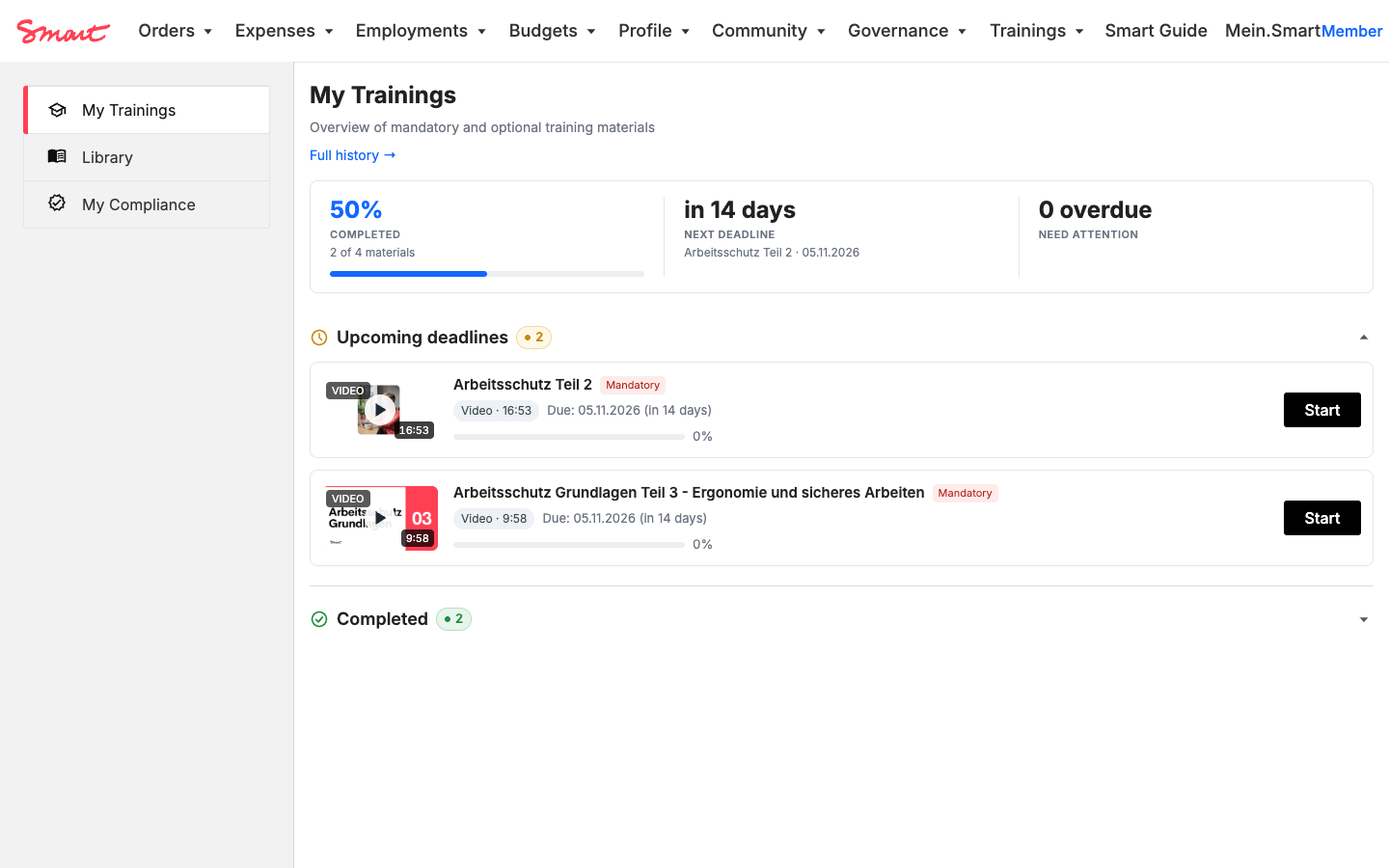
4. Finish a video with a knowledge check
- Next to the video, click Start (or Continue if you have already started it).
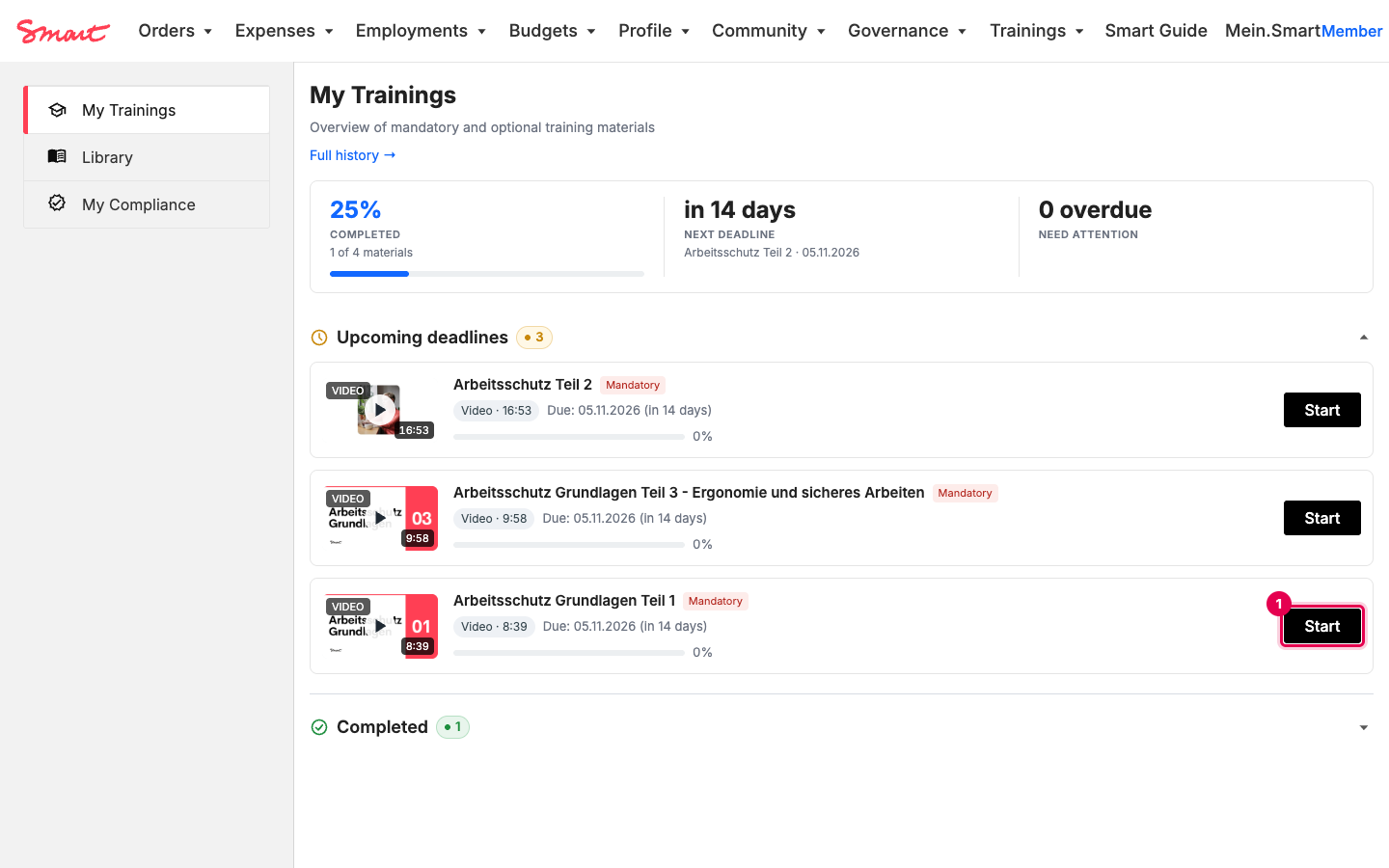
- Click the play button and watch the video.
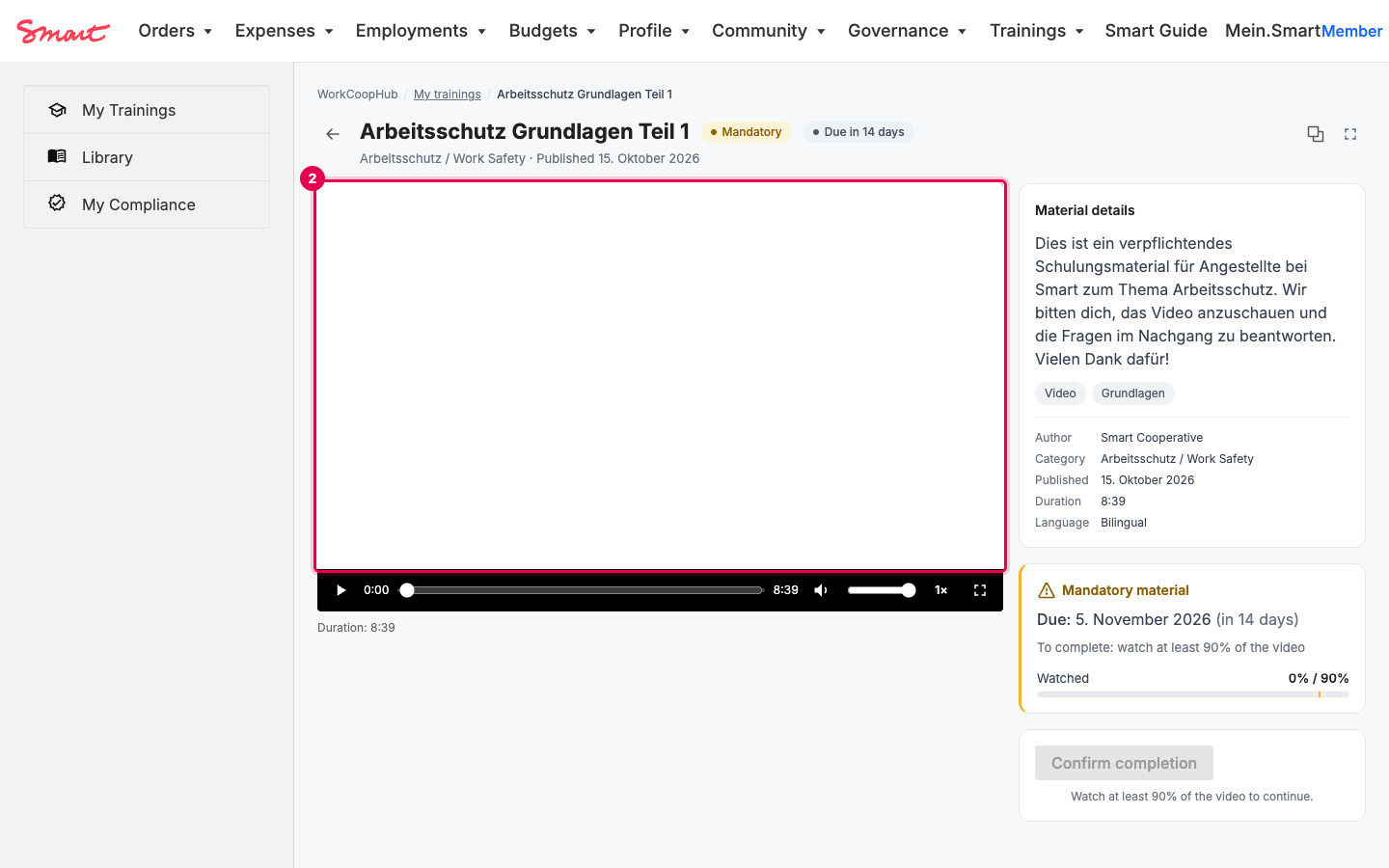
On the right, under Watched, you see how much you have watched.
You must watch at least 90% of the video. Only the parts you really watch count.
You can make the video faster with the 1× button (up to 2×).
You can stop and come back later: the portal remembers where you stopped.
Some videos end with a short knowledge check: 3 questions, answer Yes or No. When you have watched 90%, you see the button Take the knowledge check. Confirm completion stays grey until you pass the check.
- Click Take the knowledge check.
- to 6. Answer each question with Yes or No.
- Click Submit answers.
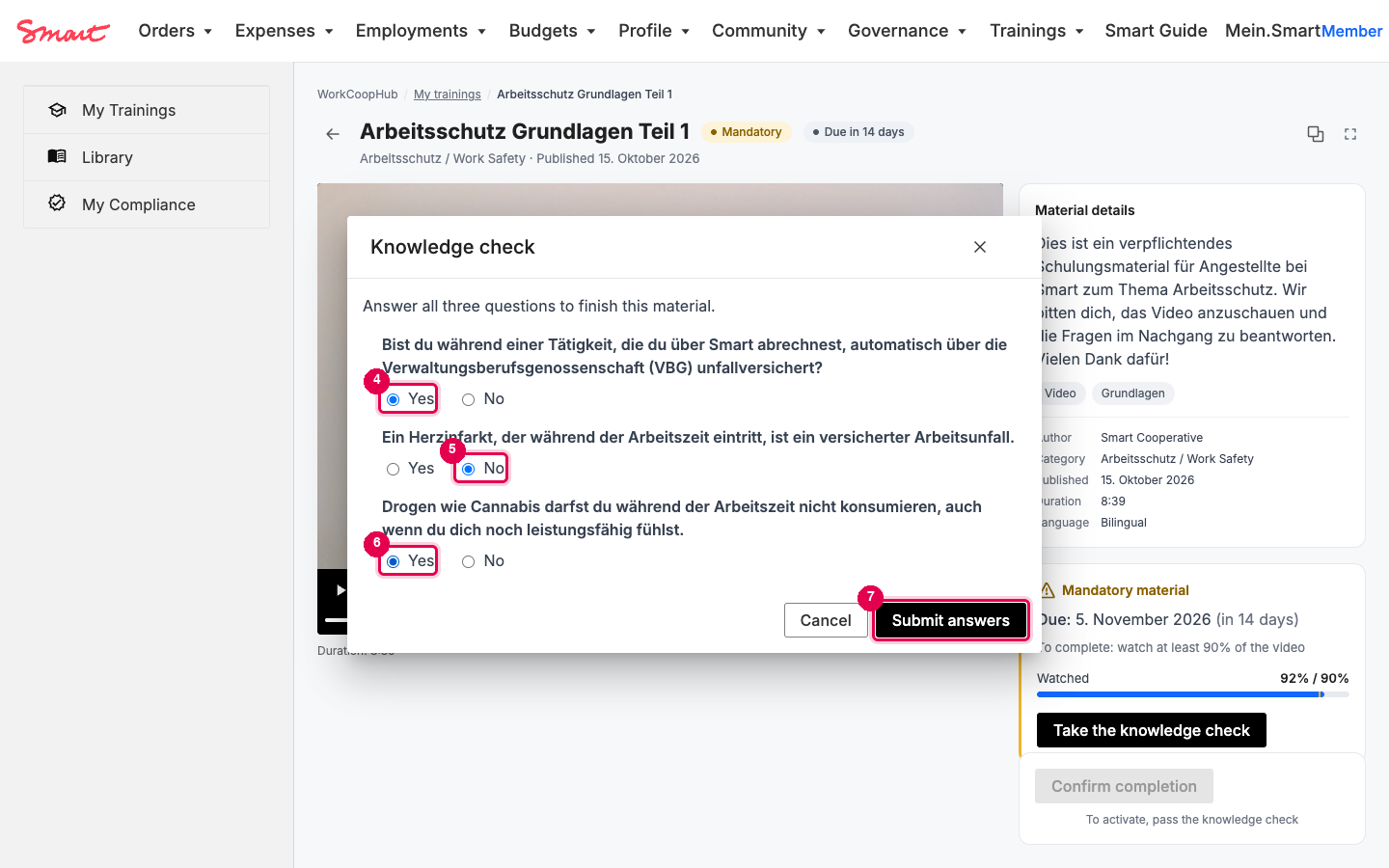
If all answers are right, you see Knowledge check passed. If an answer is wrong, you can try again.
- Click Confirm completion.
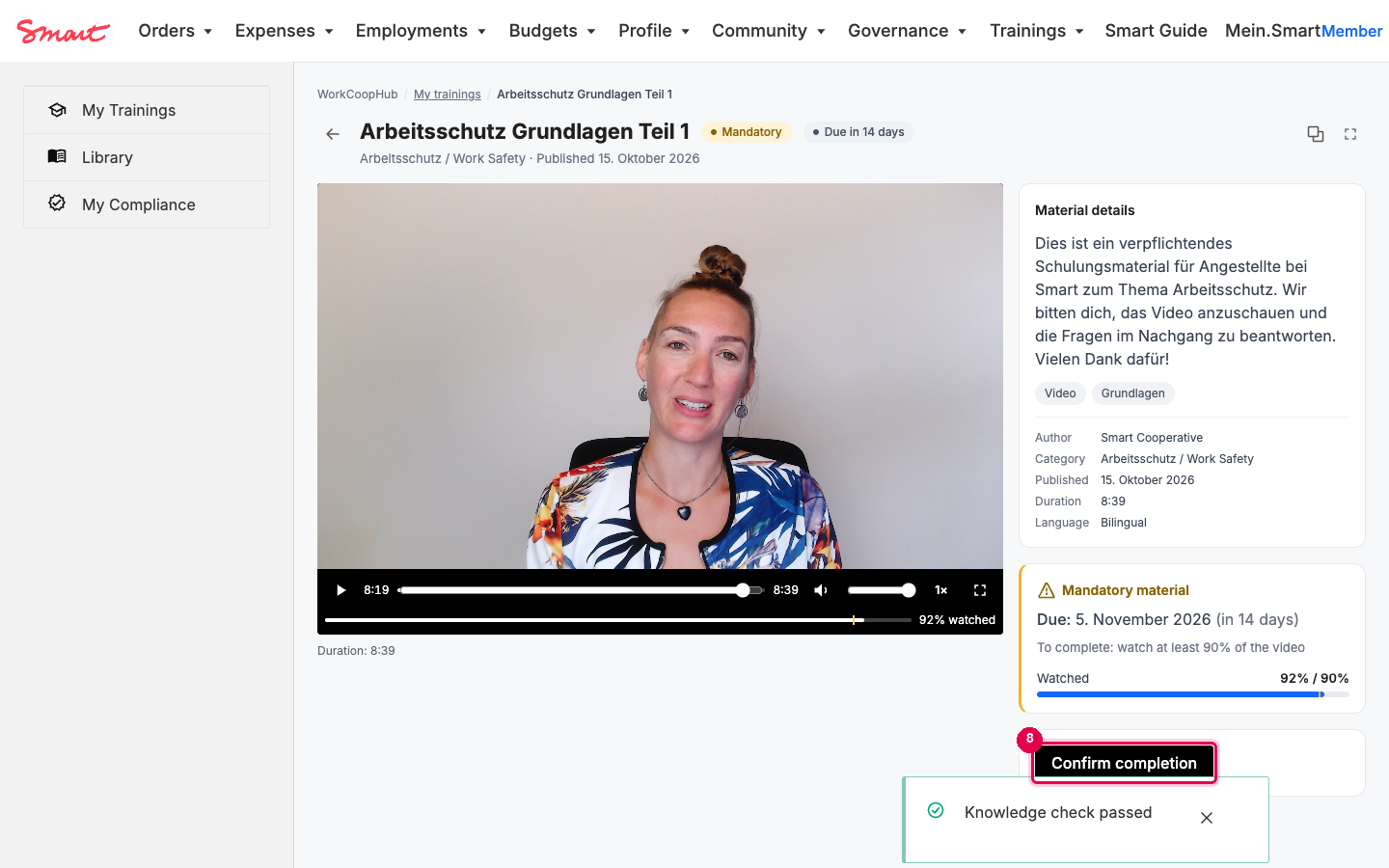
- A window opens. Click Complete. It is the same window as for a document (see "3. Finish a document (PDF)").
Done. On the right you now see Completed on and the date.
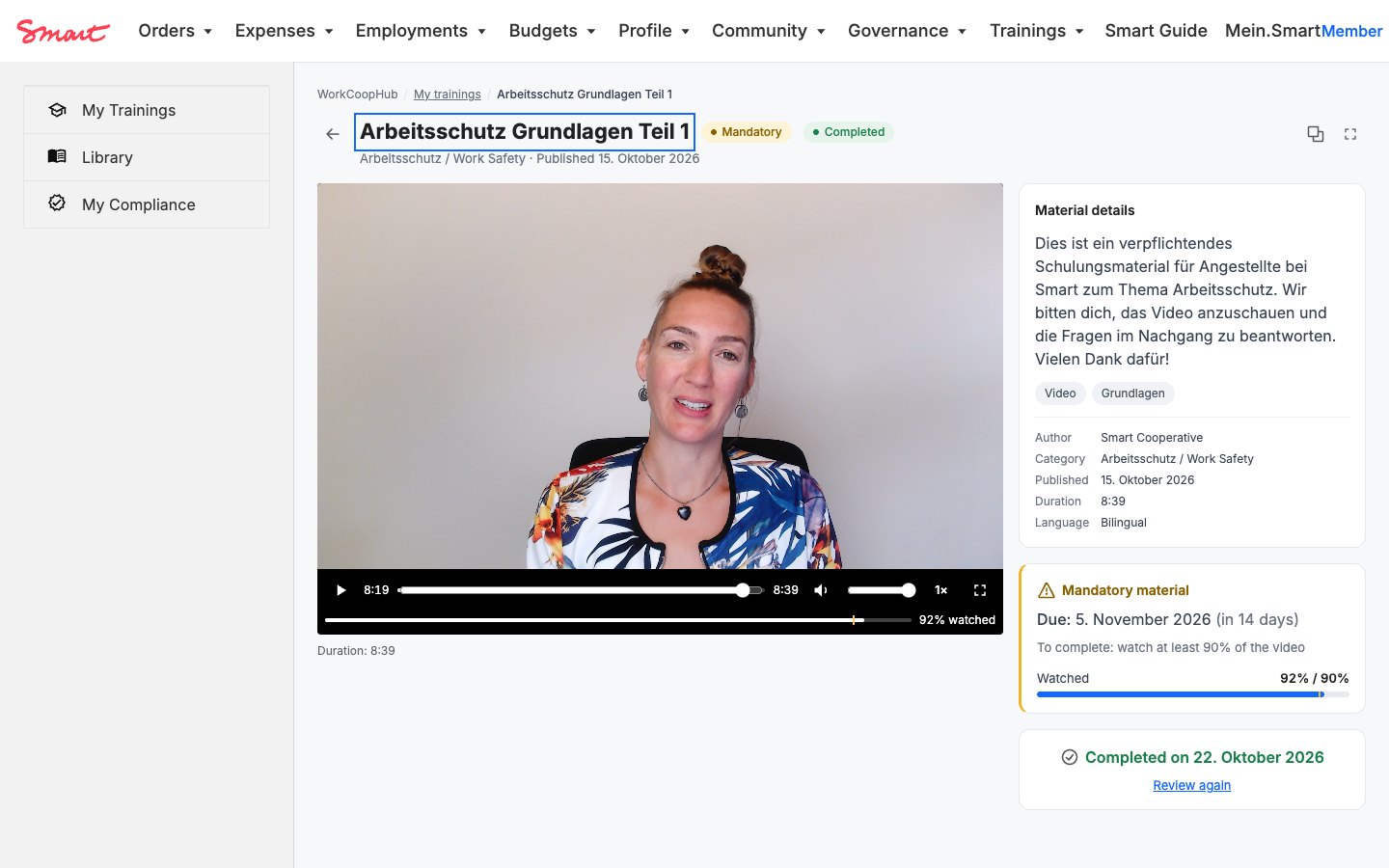
A video without a knowledge check works the same way: when you have watched 90%, Confirm completion becomes active right away.
When you go back to My Trainings, the materials you finished are in the Completed list, and your progress at the top goes up.