# Order Processing
How to create, change or cancel your order
# Creating orders
Create a new order as soon as you want to realize an order with your clients. You have the possibility to send orders for confirmation to clients and thus keep a good overview of your orders and their status. An order is the basis for invoicing. Please fill out an order for each project or service for which Smart should issue an invoice.
To do this, please click on the +New order button at the top right of the dashboard. You can access the order view in various ways:
**Dashboard**
[](https://guide.smart-eg.de/uploads/images/gallery/2023-04/KDMimage.png)
**Menu - Orders**
[](https://guide.smart-eg.de/uploads/images/gallery/2023-04/WWsimage.png)
When creating an order, please pay close attention to the input of data, such as the order and service description, as they will be taken over exactly for invoicing to the clients. In the next step, in the status of Smart Confirmation, we will review the order and make minor adjustments if necessary. We will not make any changes that affect the content of your orders and agreements with clients (scope of services or amount of fees).
There are two different types of orders:
1. **Individual order:** This is either invoiced in a single invoice or billed through partial payments.
2. **Order as a framework agreement:** This describes a collaboration over a longer period, for which recurring invoices are issued, e.g. on a monthly basis.
The same form is used for both types of orders. The differences are specified in the [**payment terms**](https://guide.smartde.coop/en/link/51#bkmrk-zahlungsart-hier-wer) and the [**service period**](https://guide.smartde.coop/en/link/51#bkmrk-order-details---your).
You can find the details described step by step below.
For every order processed through the cooperative, a **Smart fee of 9% of the net invoice amount** is deducted. The revenue from the Smart fee is used to fund the cooperative’s services, their further development, and the payment guarantee. If your project is not processed through Smart, you will not incur any costs.
---
#### Below we will guide you through all the steps of order creation
Client
Type the first 3 letters of the client to select from the client database or create a new client. If you haven't done this step yet, please go to the chapter '[Adding a new client](https://guide.smartde.coop/en/books/adding-a-new-client)' in this tutorial.
Contact person
The contact person is linked to the individual order and must therefore be entered for each new order, even if the client has already been created in the database. You can send different orders with the same client to different contact persons.
The contact person is only visible to you and does not appear publicly in the client profile. The contact person receives all e-mails and invoices related to the order (order confirmation, invoices, cancellation). If several persons should receive the invoice, you can add additional e-mail addresses here. Please note that the order form will only be sent to the contact person.
In the client profile you can specify another e-mail address to which all invoices and cancellation invoices will also be sent (see chapter '[Adding a new client](https://guide.smartde.coop/en/books/adding-a-new-client/page/adding-a-new-client) - e-mail for invoice'). The e-mail addresses of the contact person and the invoice address can also be the same. In such case only one e-mail will be sent. If no additional e-mail address for invoices is specified under client details, the contact person given in the order will receive the invoice.
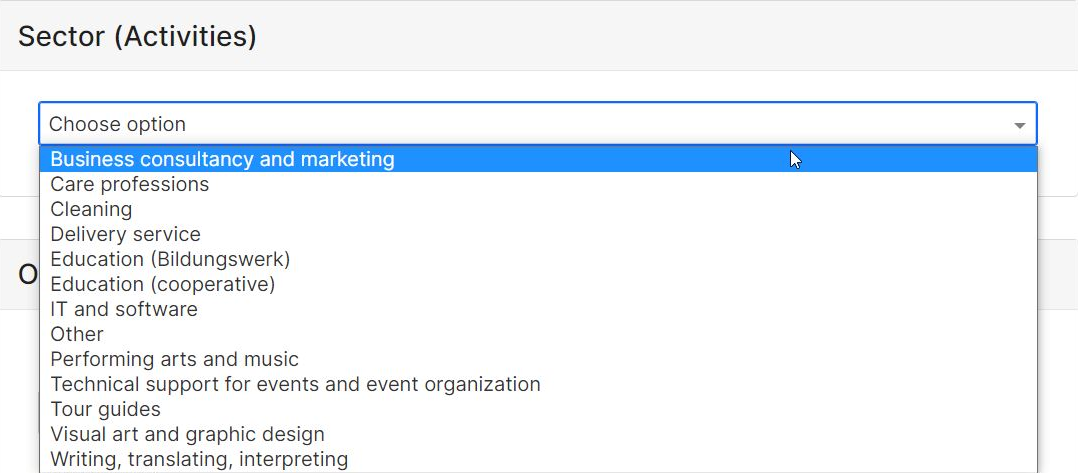
Sector (Activities)
In the next step, please select the sector according to the service you provide.
[](https://guide.smartde.coop/en/uploads/images/gallery/2023-06/image.png)
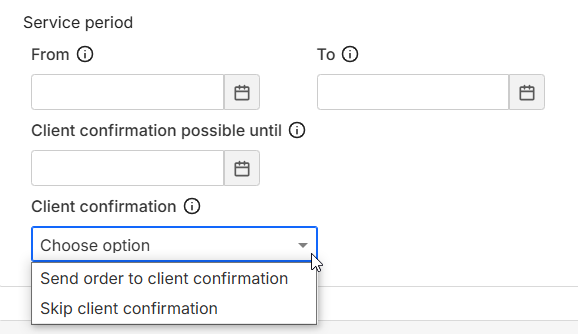
Client confirmation
Before the invoice is issued to your client, your order can first be sent to them for confirmation. This is a recommended option, especially for business clients within the EU, as we can offer [payment guarantee ](https://guide.smartde.coop/en/books/insurance-on-the-assignment/page/payment-guarantee)for these orders, as long as they are confirmed.
If you choose the option **Send order to client confirmation**, an e-mail with the confirmation link will be sent to your client. At this point they can still request changes, confirm or reject the order. This document is not an invoice!
[](https://guide.smartde.coop/en/uploads/images/gallery/2025-01/image.png)
**Skip client confirmation and create an invoice
**Use this option if you want to skip the confirmation by the client and go directly to invoicing. Please select an appropriate reason for skipping.
Please note: If there is no other confirmation of the order from your client, e.g. a separate agreement that you can upload in the portal, the order will be processed without payment guarantee.
[](https://guide.smart-eg.de/uploads/images/gallery/2023-04/qerimage.png)
Orders requiring client confirmation below €5,000 are confirmed by the client with a single click. Orders requiring client confirmation above €5,000 must additionally be signed by the client. In this case, the client will receive an email asking them to first download the order and then upload the signed version. You can find the email template under [Communication with clients](https://guide.smartde.coop/en/books/communication-with-clients).
**Offer valid until**
Please set a deadline until when the clients can confirm your order. After the deadline, the order will change its status to "Rejected". You will be notified per e-mail 3 days before the end of the deadline, so you can get in touch with your clients.
Payments
Now you can indicate the mode of payment, the billing date and when the payment is due. Please note that this information is especially important, as it influences the timing of invoicing and reminders.
##### Mode of payment
**After completion
**Please note that you cannot receive [payment guarantee](https://guide.smartde.coop/en/books/insurance-on-the-assignment/page/payment-guarantee) with this payment mode.
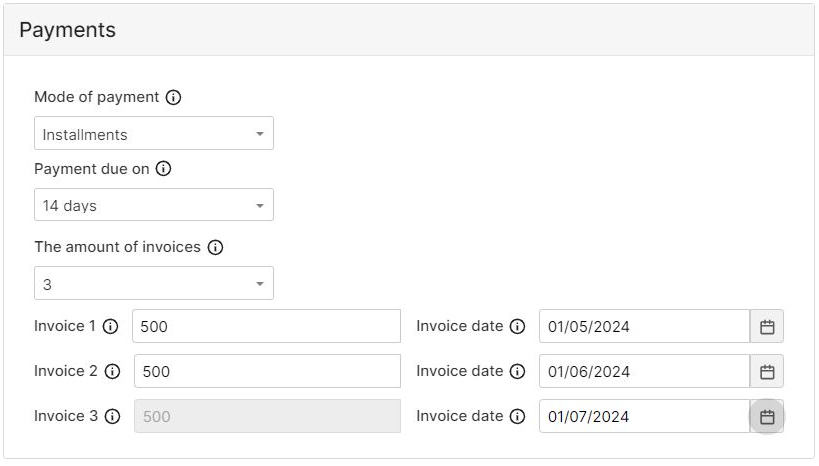
**Installments
**The payment of your order can be divided into up to three invoices. You can specify when particular installments should be invoiced.
[](https://guide.smartde.coop/en/uploads/images/gallery/2024-05/YXeimage.png)
**Recurrent payments: for "Orders as a framework agreement"** Recurring orders or frame contracts refer to the same service that is invoiced on a regular basis. If the invoice for the same amount should always be issued at a certain time, you can specify this as follows:
[](https://guide.smart-eg.de/uploads/images/gallery/2023-04/b4Limage.png)
**Pre-payment**
For a pre-payment, the service period must be in the future.
**User-defined**
Here, you can define yourself when the invoice should be issued, independently of the other information entered in the order form.
Comment
You can leave a comment for the Smart Advisors' Team here. It will be only visible for us and not for the client.
Signed Orders
At the very bottom, you can upload orders, contracts, or other documents that have already been signed by the client and confirm the collaboration. Smart can access and review these documents.
Save as draft or save and submit
Now the order can be sent directly to the Smart Team for confirmation or to the client for confirmation. You can also save it as a draft and edit it later. Drafts are not visible for the Smart team.
Smart reviews all orders before they are sent to the client for confirmation or proceed directly to invoicing. If there are any questions, Smart will get in touch with you.
You can **leave us a comment** under each order - please note that we are not notified, once the comment has been added after submitting the order. In the case of urgent changes, please do not use that option, but write us an e-mail at instead. Please also note that comments added to an order will not appear as comments in the invoice draft.
If you want to make a **change to a recurring order**, you can make the change for an individual invoice, as described in step 4 above – i.e. after you have received the automatic email from the portal informing you that the invoice draft has been created. If the change affects all invoices for this order or client details change, a new recurring order must be created.
# Cancelling orders
**Cancelling an order form in "Smart confirmation"**
You’ve just sent us an order form and then noticed an error? If the order form is still in “Smart confirmation”, simply open it, scroll to the bottom of the page, and click “Retrieve Order”:
[](https://guide.smartde.coop/en/uploads/images/gallery/2026-09/screenshot-2026-09-03-102732.png)
The order will immediately be moved back to your drafts. Make the necessary changes, then send it again once it’s ready.
**Cancelling an order form in "Active"**
You can also request the cancellation of an active order form. To do so, open the order form, scroll to the bottom of the page and click on "Request cancellation":
[](https://guide.smartde.coop/en/uploads/images/gallery/2026-09/screenshot-2026-09-03-105817.png)
Smart will review the request, and any planned or issued invoices will also be cancelled by Smart. Please provide a detailed reason for the cancellation request.
# Order rejected or client blocked
##### Your order has been rejected?
**Smart will reject the order from you if:**
- The planned activity requires a license or a guarantee.
- The planned activity does not comply with [the statute of the cooperative](https://guide.smartde.coop/en/books/membership/page/smartde-eg-statute).
- The planned activity cannot be processed through Smart (for example craftsmanship or sale of goods).
- The assignment has an hourly wage that is too low, which would result in the minimum wage not being met in the event of employment.
**Smart can refuse to process your order at any given stage if:**
- There is a suspicion that the work is subject to bogus self-employment and is not carried out independently.
- There is a difference of opinion between the cooperative and the members regarding the execution of the order.
- The client has debt towards the cooperative or if the invoices from the client are due for more than 2 months.
- There is a lack of cooperation on the part of the member to process the order.
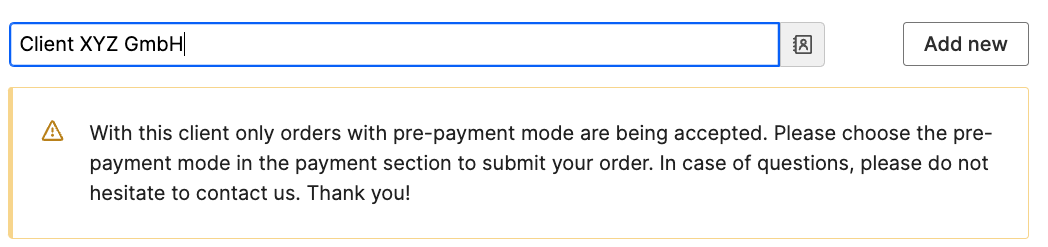
##### Your client is blocked?
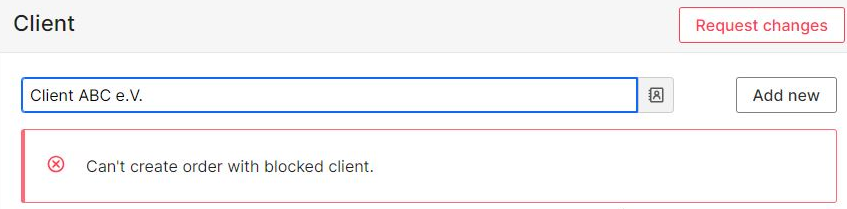
If clients already have too many unpaid invoices or there have been other issues, it may be necessary for us to temporarily block these clients. Depending on the problem, only orders with advance payment may be possible, or we might not be able to accept new orders at all.
If you personally haven't had any issues with the client, please contact Smart for more information. We would communicate together with you and your client to resolve the issue.
[](https://guide.smartde.coop/en/uploads/images/gallery/2024-07/image.png)
[](https://guide.smartde.coop/en/uploads/images/gallery/2024-07/Eukimage.png)