# Uploading receipts
Here you can upload receipts that you have paid yourself. If an invoice is to be paid by Smart, you must create it as a [direct payment](https://guide.smartde.coop/en/books/direct-payments-to-third-parties).
**1)** Make sure that **Smart is the customer on the receipts**. Depending on which company you are employed by, the details are as follows:
**SMartDe eG**, Franz-Mehring-Platz 1, 10243 Berlin, VAT-ID: DE302421357
**Smart Bildungswerk gGmbH**, Franz-Mehring-Platz 1, 10243 Berlin
- For gross amounts below EUR 250, it is possible that no customer appears on the receipts. These receipts can also be submitted. If they show your private address, then they can't be submitted.
- Accommodation costs and tickets can be in the name of the employed member
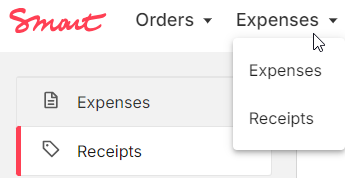
**2)** Go to "**Expenses > Receipts**" in the Smart Portal and add receipts.
[](https://guide.smartde.coop/en/uploads/images/gallery/2024-10/2024-10-04-13-23-38-smart-portal-deutschland.png)
[](https://guide.smartde.coop/en/uploads/images/gallery/2024-10/wiD2024-10-04-13-24-10-common-database-for-smartde-keepassxc.png)
**3)** Upload the receipt and fill in the required fields with information from the receipt. The title is for recognition purposes and should be meaningful to you.
**4)** When you are finished, you can save the receipt. You will now find it in your list of receipts.
Please note: If you submit receipts to Smart and the costs are reimbursed via an expense reimbursement, you cannot use the same receipt in your income-related expenses or in your income/expenses statement.
Please only submit receipts in one expense form for a closed period. (For example, one for expense form for receipts from 2026 and one expense form including receipts from 2027)
##### Step by step in the Portal:
Uploading files
The portal supports the file formats .pdf and .jpg, so if invoices or documents are uploaded, they should be in these formats. It is also important to note that only one file can be uploaded. Therefore, multi-page documents must be saved as .pdf. If you do not have a scanner but only a smartphone, we recommend installing a scanning app (e.g. Adobe Scan or Preview for Iphone/Mac).
Title of the Receipt
The title of the receipt will appear in your list when you select receipts for expense reimbursement, so it should be assignable and recognizable. For recurring receipts, it may be useful to make a time assignment, e.g. "Name-2026-July".
Type of receipt
You can choose a category matching your expense from the drop-down list. Read on about [reimbursable goods](https://guide.smartde.coop/en/books/expense-reimbursement/page/reimbursable-goods) here.
We will check your entry and adjust it if necessary.
Information on the receipt
The details of the **supplier** (company/person issuing the invoice), the **total amount of the invoice**, the **currency** and the **VAT** rate can be found on the invoice. If several VAT rates are stated, "Mixed VAT" can be selected.
The "**Invoice date**" refers to the date on the invoice.
In the **Description** field, you can briefly explain to the Smart Team what the invoice is about, especially if it is not clear from the invoice.