# Expense reimbursement
# Reimbursable goods
#### What can be reimbursed?
Advertising
e.g. flyers, posters, social media campaigns
Bahncard
If you buy a BahnCard privately and also use it for business trips or travel to job interviews, you can claim the costs as income-related expenses. It is important to list the journeys for business trips and trips for job interviews. To do this, a logbook must be kept showing the price of the regular ticket on one side and the price of the ticket with the Bahncard on the other. If the sum of the regular fares exceeds the reduced fares including the Bahncard, you can have the Bahncard reimbursed from your budget.
You only need to enter as many journeys until the costs without BahnCard exceed the costs with BahnCard. After that, no further listing is necessary.
You can find a **travel log template** in [Mein.Smart](https://mein.smart-eg.de/) under Allgemeine Infos - Mitglieder\\Formulare\_Forms\\Fahrtenbuch\_Bahncard.
Please sign this file and send it to us together with your reimbursement request.
Catering
for the participants of project-related events
Contracted services related to your activity
- reimbursement of an invoice that has already been paid by you, or
- direct payment from your budget to the third party
For more information go to the chapter [Direct payments to third parties](https://guide.smartde.coop/en/books/direct-payments-to-third-parties).
Deutsche Bahn tickets
Due to a restructuring at Deutsche Bahn, tickets are no longer considered sufficient proof of purchase. Instead, Deutsche Bahn now issues a corresponding **invoice** for each ticket.
This means that we can no longer accept Deutsche Bahn tickets as receipts. If you are traveling for work with Smart, please enter the Smart address as the billing address in the DB portal. You can access your DB invoices via this link: [https://www.bahn.de/buchung/meine-reisen](https://www.bahn.de/buchung/meine-reisen)
**Please note:** If you also want to use the DB portal to purchase tickets for private travel, you should change the address before making the purchase.
Please note that we cannot reimburse local public transport tickets or subscriptions for travel within your place of residence or to/from the office.
Hospitality costs
At least **two people** must have dined (meals for individual people can only be claimed via travel expenses), and at least o**ne person must not be employed by Smart**.
To claim hospitality expenses, we need **a completed hospitality receipt** with the names of the people entertained and your signature. You can obtain the relevant form at the restaurant; alternatively, you can find it in your mein.Smart folder and [here](https://mcusercontent.com/5bf8313bd1b3721f5e1091297/files/339bfed8-d382-46c7-950c-d02ff73e6c7f/Bewirtungskostenbeleg.pdf).
Please note: Tips that are not listed on the receipt will not be reimbursed.
Insurance for project-related activities
- for project-related activities or events
- only with Smart address
Material costs
Office supplies, copies, printouts
Postage
Pre-paid cards (mobile phone)
A cell phone contract / subscription cannot be reimbursed.
Professional training
If related to the activity carried out through Smart.
Rent for workspace
- Invoices for co-working spaces, room hire and rehearsal rooms may be submitted.
- If there is a tenancy agreement, the costs can only be reimbursed if a sublease agreement is signed between Smart and the member. You'll pay the rent every month and request a reimbursement through the "Expense reimbursement form". [Sample sublease agreement.doxc. ](https://guide.smartde.coop/attachments/9)
Specialist books, professional magazines
Subscriptions
- up to 50 Euro/month
- Smart address is obligatory on the invoice
- Public transport subscriptions cannot be reimbursed, but as an employed member, you can purchase a Job Ticket through Smart. More information [here](https://guide.smartde.coop/en/books/other-benefits/page/deutschlandticket-jobticket).
- Expenses related to your living space cannot be reimbursed (e.g. internet, electricity, insurance, etc.).
Technical and high-value goods
- [A usage agreement](https://eu.jotform.com/222921575164356) must be signed with Smart for certain high-value goods, for example:
1. Laptops, PCs, monitors, servers, etc.
2. Cameras, televisions, projectors
3. Cell phones
4. High-quality tools and technical equipment
- Please note that goods reimbursed via Smart are **not** insured against damage or loss.
- At the end of your employment you will have to buy the goods back from Smart, so that they can become your private commodity.
Transportation costs including fuel
Work clothing
protective clothes or uniforms for professional use
As an alternative to a BVG ticket, you can use the Deutschlandticket as a job ticket via your Smart Budget. You can find more information on this in the chapter [Other benefits of your Smart employment](https://guide.smartde.coop/en/books/other-benefits).
If you cannot find your expenses on this list, please ask us via e-mail (members@smartde.coop) whether the costs can be reimbursed.
# 1. Step: Entering receipts
# Uploading receipts
Here you can upload receipts that you have paid yourself. If an invoice is to be paid by Smart, you must create it as a [direct payment](https://guide.smartde.coop/en/books/direct-payments-to-third-parties).
**1)** Make sure that **Smart is the customer on the receipts**. Depending on which company you are employed by, the details are as follows:
**SMartDe eG**, Franz-Mehring-Platz 1, 10243 Berlin, VAT-ID: DE302421357
**Smart Bildungswerk gGmbH**, Franz-Mehring-Platz 1, 10243 Berlin
- For gross amounts below EUR 250, it is possible that no customer appears on the receipts. These receipts can also be submitted. If they show your private address, then they can't be submitted.
- Accommodation costs and tickets can be in the name of the employed member
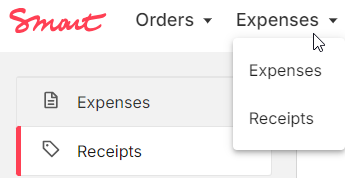
**2)** Go to "**Expenses > Receipts**" in the Smart Portal and add receipts.
[](https://guide.smartde.coop/en/uploads/images/gallery/2024-10/2024-10-04-13-23-38-smart-portal-deutschland.png)
[](https://guide.smartde.coop/en/uploads/images/gallery/2024-10/wiD2024-10-04-13-24-10-common-database-for-smartde-keepassxc.png)
**3)** Upload the receipt and fill in the required fields with information from the receipt. The title is for recognition purposes and should be meaningful to you.
**4)** When you are finished, you can save the receipt. You will now find it in your list of receipts.
Please note: If you submit receipts to Smart and the costs are reimbursed via an expense reimbursement, you cannot use the same receipt in your income-related expenses or in your income/expenses statement.
Please only submit receipts in one expense form for a closed period. (For example, one for expense form for receipts from 2026 and one expense form including receipts from 2027)
##### Step by step in the Portal:
Uploading files
The portal supports the file formats .pdf and .jpg, so if invoices or documents are uploaded, they should be in these formats. It is also important to note that only one file can be uploaded. Therefore, multi-page documents must be saved as .pdf. If you do not have a scanner but only a smartphone, we recommend installing a scanning app (e.g. Adobe Scan or Preview for Iphone/Mac).
Title of the Receipt
The title of the receipt will appear in your list when you select receipts for expense reimbursement, so it should be assignable and recognizable. For recurring receipts, it may be useful to make a time assignment, e.g. "Name-2026-July".
Type of receipt
You can choose a category matching your expense from the drop-down list. Read on about [reimbursable goods](https://guide.smartde.coop/en/books/expense-reimbursement/page/reimbursable-goods) here.
We will check your entry and adjust it if necessary.
Information on the receipt
The details of the **supplier** (company/person issuing the invoice), the **total amount of the invoice**, the **currency** and the **VAT** rate can be found on the invoice. If several VAT rates are stated, "Mixed VAT" can be selected.
The "**Invoice date**" refers to the date on the invoice.
In the **Description** field, you can briefly explain to the Smart Team what the invoice is about, especially if it is not clear from the invoice.
Select budget
You may have more than one budget at Smart, so please select one. It makes sense to check in the respective budget whether you have enough available "budget for expenses" and to contact the Smart team if you need support with your budget planning.
Description
The Description field is used to recognize the reimbursement of expenses. It is not a relevant field for the Smart Team, so you can fill it in as you wish.
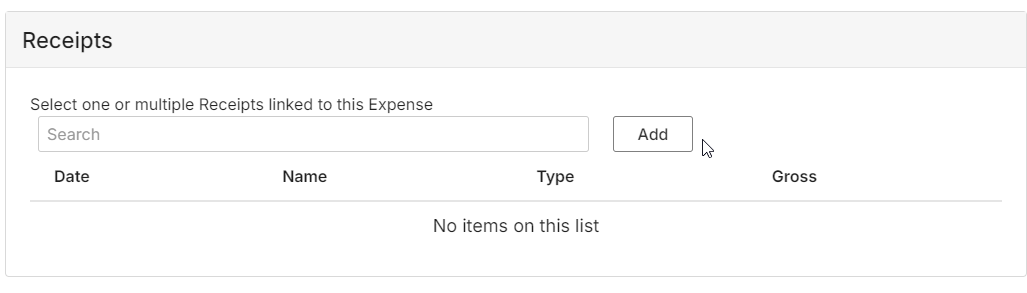
Add receipts
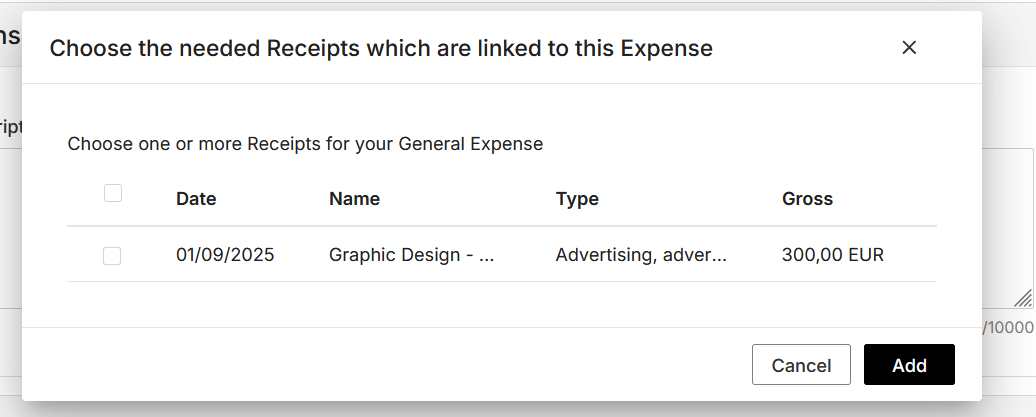
If you click on the "Add" button, you will be shown the receipts that you have already saved but not yet submitted. So there is no risk of submitting something twice.
You must place a checkmark in front of the selected receipt and then select "Add" again.
[](https://guide.smartde.coop/en/uploads/images/gallery/2024-10/2024-10-04-13-25-13-smart-portal-deutschland.png)
[](https://guide.smartde.coop/en/uploads/images/gallery/2026-09/screenshot-2026-09-25-155633.png)
Gross and net amounts
The form will show you two amounts before you submit it. The calculation is based on the information in the receipts. Please note that the receipts and in particular the VAT rates will be checked again by the team before the expense reimbursement is confirmed, so there may be changes.
The **gross amount** refers to the sum that is transferred to your account.
The **net amount** refers to the sum that is debited from your budget.