# 1. Step: Entering receipts


# Uploading receipts

Here you can upload receipts that you have paid yourself. If an invoice is to be paid by Smart, you must create it as a direct payment.

**1)** Make sure that **Smart is the customer on the receipts**. Depending on which company you are employed by, the details are as follows:

**SMartDe eG**, Franz-Mehring-Platz 1, 10243 Berlin, VAT-ID: DE302421357

**Smart Bildungswerk gGmbH**, Franz-Mehring-Platz 1, 10243 Berlin

- For gross amounts of **less than EUR 250**, it is possible that no customer appears on the receipts. These receipts can also be submitted.
- Accommodation costs and tickets can be in the name of the employed member

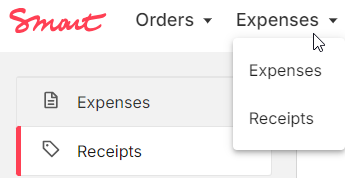
**2)** Go to "**Expenses &gt; Receipts**" in the Smart Portal and add receipts.

[![2024-10-04 13_23_38-Smart Portal Deutschland.png](https://guide.smartde.coop/en/uploads/images/gallery/2024-10/scaled-1680-/2024-10-04-13-23-38-smart-portal-deutschland.png)](https://guide.smartde.coop/en/uploads/images/gallery/2024-10/2024-10-04-13-23-38-smart-portal-deutschland.png)
[![2024-10-04 13_24_10-Common database for SmartDe - KeePassXC.png](https://guide.smartde.coop/en/uploads/images/gallery/2024-10/scaled-1680-/wiD2024-10-04-13-24-10-common-database-for-smartde-keepassxc.png)](https://guide.smartde.coop/en/uploads/images/gallery/2024-10/wiD2024-10-04-13-24-10-common-database-for-smartde-keepassxc.png)

**3)** Upload the receipt and fill in the required fields with information from the receipt. The title is for recognition purposes and should be meaningful to you.

**4)** When you are finished, you can save the receipt. You will now find it in your voucher list.

<p class="callout warning">Please note: If you submit receipts to Smart and the costs are reimbursed via an expense reimbursement, you cannot use the same receipt in your income-related expenses or in your income/expenses statement.</p>

<p class="callout info">Please only submit receipts for a closed period. (For example, separately for the years 2023 and 2024)</p>


##### Step by step in the Portal:

<details id="bkmrk-uploading-files-the-"><summary>Uploading files</summary>

The portal supports the file formats .pdf and .jpg, so if invoices or documents are uploaded, they should be in these formats. It is also important to note that only one file can be uploaded. Therefore, multi-page documents must be saved as .pdf. If you do not have a scanner but only a smartphone, we recommend installing a scanning app (e.g. Adobe Scan or Preview for Iphone/Mac).

</details><details id="bkmrk-title-of-the-receipt"><summary>Title of the Receipt</summary>

The title of the receipt will appear in your list when you select receipts for expense reimbursement, so it should be assignable and recognizable. For recurring receipts, it may be useful to make a time assignment, e.g. "Name-2023-July".

</details><details id="bkmrk-type-of-receipt-you-"><summary>Type of receipt</summary>

You can choose a category of your reimbursement from the drop-down list. Read on about [reimbursable goods](https://guide.smartde.coop/en/books/expense-reimbursement/page/reimbursable-goods) here.

We will check your entry and adjust it if necessary.

</details><details id="bkmrk-information-on-the-r"><summary>Information on the receipt</summary>

The details of the **supplier** (company/person issuing the invoice), the **total amount of the invoice**, the **currency** and the **VAT** rate can be found on the invoice. If several VAT rates are stated, "Mixed VAT" can be selected.

The "**Invoice date**" refers to the date on the invoice.

In the **Description** field, you can briefly explain to the Smart Team what the invoice is about, especially if it is not clear from the invoice.

</details>

# Managing receipts

##### Receipts by Status

You can find the receipts in the portal in different lists, depending on the status they are in.

**Not submitted:** These are receipts that can still be used for expense reimbursements.

**Submitted:** These are receipts that are part of an expense reimbursement either pending confirmation at Smart or has been accepted and paid out.

**Rejected:** These are receipts that, for various reasons, cannot be accepted. You can view them here and, if the legal requirements are met, use them for your own tax return or income-expenditure statement.

The lists can be sorted by any column and can be viewed on a per-year basis. You can view individual receipts by double-clicking on the corresponding row.

[![2024-10-10 15_31_44-Smart Portal Deutschland.png](https://guide.smartde.coop/en/uploads/images/gallery/2024-10/scaled-1680-/2024-10-10-15-31-44-smart-portal-deutschland.png)](https://guide.smartde.coop/en/uploads/images/gallery/2024-10/2024-10-10-15-31-44-smart-portal-deutschland.png)

##### Deleting Receipts

You can delete receipts that have not been submitted at any time by clicking on the symbol at the far right in the respective row.

[![2024-10-10 15_29_45-Smart Portal Deutschland.png](https://guide.smartde.coop/en/uploads/images/gallery/2024-10/scaled-1680-/2024-10-10-15-29-45-smart-portal-deutschland.png)](https://guide.smartde.coop/en/uploads/images/gallery/2024-10/2024-10-10-15-29-45-smart-portal-deutschland.png)

# Receipts and Invoices

<p class="callout warning">Receipts without detailed invoice details can be issued for smaller amounts up to €250 gross (including VAT). For amounts exceeding €250, we always require a proper invoice.</p>

The following information is required on the invoice:

1. Our billing address: 
    - <span style="text-decoration: underline;">SMartDe eG, Franz-Mehring-Platz 1, 10243 Berlin</span> or
    - <span style="text-decoration: underline;">Smart Bildungswerk gGmbH, Franz-Mehring-Platz 1, 10243 Berlin</span>
2. Supplier's address
3. Supplier's tax number
4. Sequential invoice number
5. Invoice date
6. Invoice amount
7. For VAT exemption, provide an appropriate justification, e.g., "Due to the small business regulation according to §19 UStG, no VAT is shown."
8. IBAN and BIC of the supplier
9. Description of services and the timing or duration of the service

Please note: Invoices that do not comply with these requirements cannot be processed for payment by the accounting department of SMartDe eG.

Below, you will find an example of how an invoice should look:

[![Rechnung BE.png](https://guide.smartde.coop/en/uploads/images/gallery/2024-09/scaled-1680-/rechnung-be.png)](https://guide.smartde.coop/en/uploads/images/gallery/2024-09/rechnung-be.png)